Be sure to try our new Free DC Relax sound and noise generator V1.2
DCart version 11.08 has a new Mel spectral scale display for better visibility of vocal formants.


Be sure to try our new Free DC Relax sound and noise generator V1.2
DCart version 11.08 has a new Mel spectral scale display for better visibility of vocal formants.

Audio Restoration Tools and Archival Music
1 min read
Many people initially have some difficulties recording with Windows 10/11. This article describes some of the most common causes and fixes for this issue.
Most problems with recording on Windows are because of the way Windows deals with recording audio. Windows will default to have all recording devices disabled. Not very convenient or user friendly in my opinion. The solution is to re-enable the audio input or simply plug something into the audio in jack on your PC.
These settings are mostly outside of Dcart/DCForensics but lets step thru the possible causes.
Firstly, check what recording device is selected in DCart.
1) Go to the Sound Card screen and see what recording device is selected. (Menu – Preferences->Sound Card tab)

You can see on my system, I have enabled the “Stereo Mix” as the recording input. This allows me to record what is coming out of the sound card, such as video or audio playback from the web or a music app. This is useful for capturing audio from existing sources but is not an audio input from an external source like Line In or Mic Input.
A new “Feature” in Windows is that it will not show you the external Line In option unless there is something plugged into the line input plug on your computer. This is NOT a useful feature in my opinion.
2) To enable Windows Recording devices,
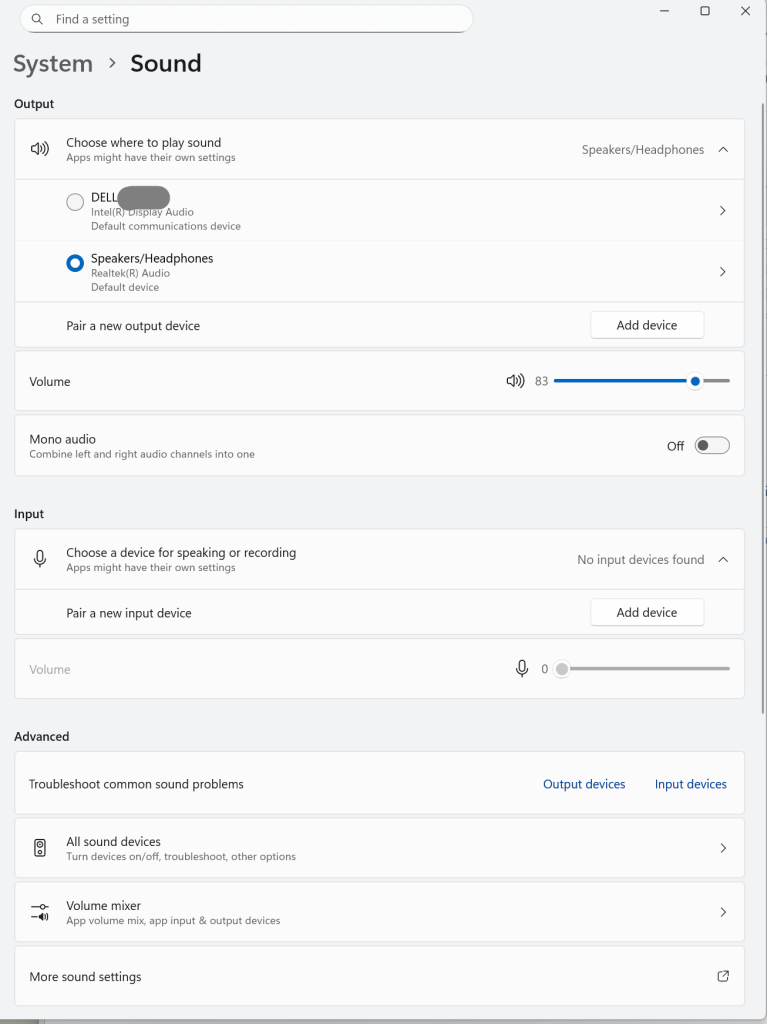
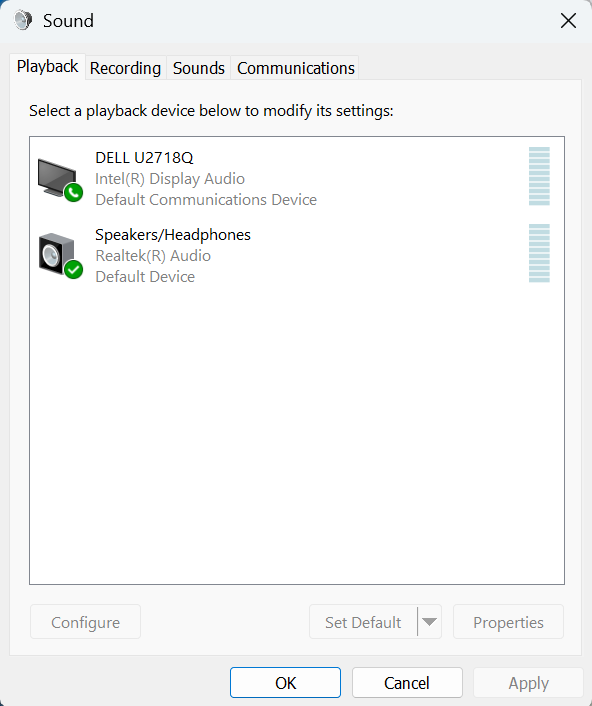

Close and restart DCart and go back to the Sound Card Setting tab in the control panel and you should now see a selection for the recording device you have enabled.
Powered by BetterDocs


