All of our free music is available in our store, just add it to your cart and checkout. No credit card necessary!
"When Sound Recording Was Young" and "Edison Originals"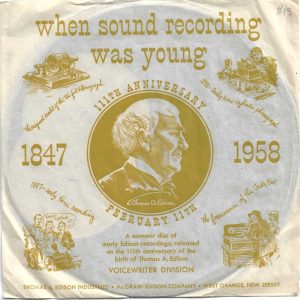
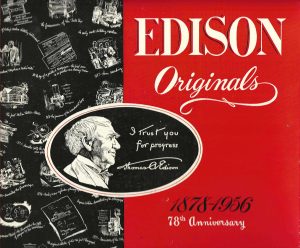
All of our free music is available in our store, just add it to your cart and checkout. No credit card necessary!
"When Sound Recording Was Young" and "Edison Originals"
Audio Restoration Tools and Archival Music
DC Tunes is a offline music play designed to play music that you own. There is no built in reliance or limitations from any music service and it does not have any annoying advertisements. Its straightforward and has unique features for musicians such as the ability to slow down tunes for learning and annotate musical keys.
DC Tunes plays music from a variety of sources including files from the web or a cloud source and local files on your PC or phone. We recommend that you copy your files to your PC or phone rather than relying on availability of the web or cloud when you want to listen to or learn some music.
To get started, you need to add music to the DC Tunes library. DC Tunes can play music directly from a file on you PC or phone or from a URL that you have permission to access.
Use your PC or Mac to transfer files to the DCTunes directory on your phone.
Import files using DCTunes
From DCTunes, Select Import Files or Import folders and browse to the cloud storage location where you music is located. Select the files or folder to download.
DCTunes recognizes most audio file types including MP3, M4A, FLAC, OGG, AIFF, and WAV and will read the tag information and album art attached to the files.
If you are copying files from to your device, we recommend organizing your files into directories with Artist first, followed by Album, then Tunes. A typical directory structure would look like this:
Artist Name
└── Album Name
└── Tune1.mp3
└── Tune2.mp3
└── Tune3.mp3
If tag (metadata) information is not present in the file or its in a format like WAV that does not contain tag information, DCTunes will use the directory structure to determine the Artist, Album and Tune name.
To play a file, select a tune from the list to start playback. DCTunes will continue on to play next tune in the track list and loop continuously.
You can use the playback controls to pause, stop, skip forward or backward in the track list.
Moving the slider control will advance playback to the desired position
If you swipe upward on the track listing, you will see the expanded playback controls and the current track information. Here you can change the playback speed and set a start point to rewind to.
The menu on the upper right, next to the search field is the sorting options. This sets the sort field and order of the displayed tunes.
Typing in the search box will search all of the metadata of all tracks as you type. The search will persist as you change tabs for Tracks, Albums and Artists.
Start your search with a ‘;’ to search only for the musical key of a tune.
Note that the Key and Genre searches only work on the Tracks tab.
You can sort by various methods depending on what tab you are using.
In the Tracks tab you can sort by Title, Artist, Album, Musical Key, Date Added or Shuffle. Sorting order can be either ascending or descending for all of the sorts.
The three dots menu next to the track listing adds convenient context sensitive actions.
The Menus are specific to each screen
Set Genre for an entire Album.
You can set the Genre for all tunes in the album, which is much faster than editing each tune and changing the Genre.
If you have questions, comments or suggestions, please visit our users forum here: